Finding and editing a student
Where. Sidebar › Student Management › Students
The list opens on active students. Use the status dropdown to see Waitlisted or Withdrawn students, or All Status for everyone.
Type in the search box beside the filters to narrow the list by name as you type. The classroom dropdown filters by room.
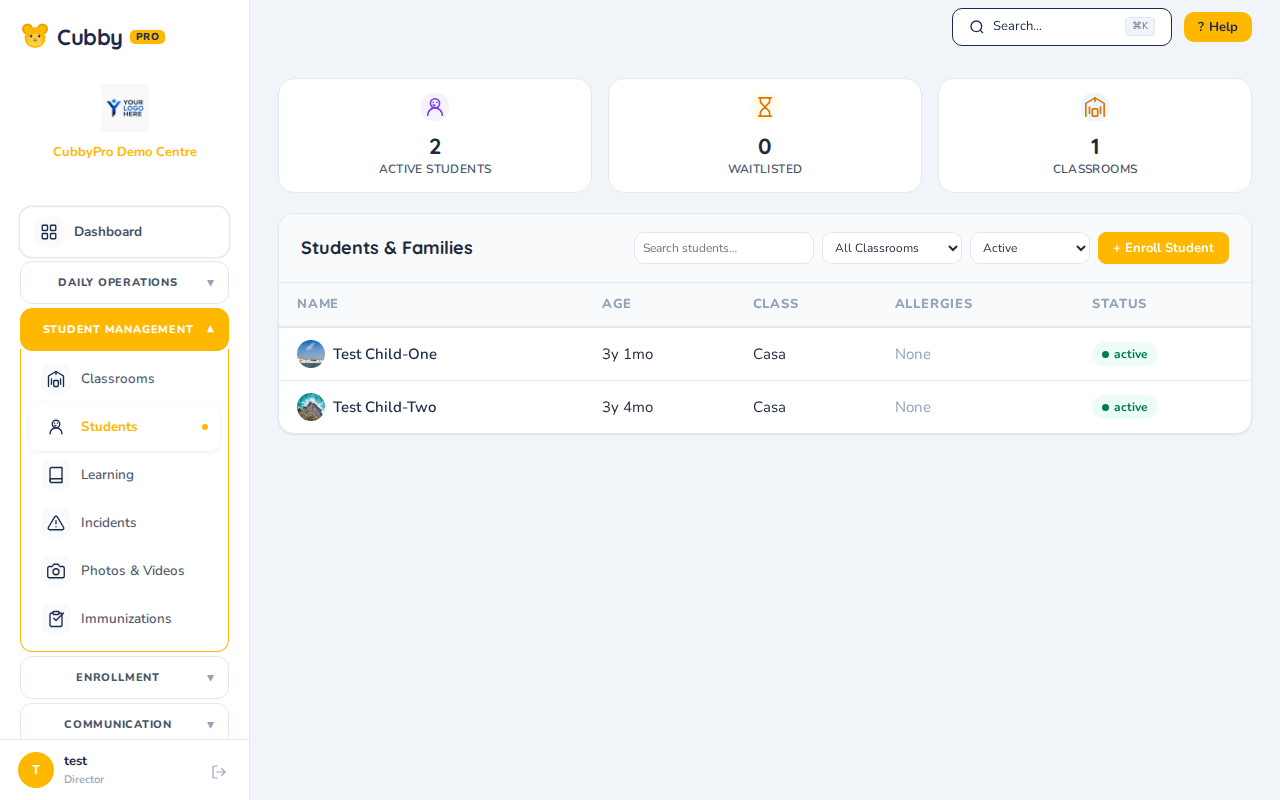
Click any row to open the student. Tabs cover Info, Health & Medical, Parents & Authorized Pickup, Billing, Schedule, Forms, Consents, Files, Activity, and Photos.
Edit any field and click Save Changes. Changes are recorded in the audit log.
Resend a parent invite. Open the student, go to the Parents & Authorized Pickup tab, and click Resend invite beside the guardian.