Finding your way around
The sidebar groups pages into Daily Operations, Student Management, Enrollment, Communication, Billing & Finance, Staff Management, Compliance, and Settings. Click a group name to expand it.
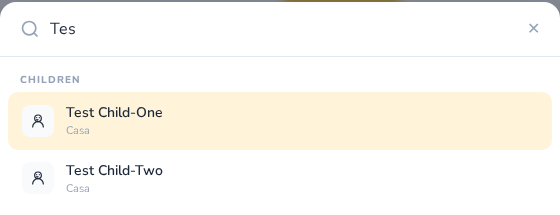
Search everything. Press Ctrl+K (Cmd+K on a Mac) or click the search box at the top. Type a page name, a student, a parent, a staff member, or an invoice number. Pick a student to open their profile, or an invoice to open it on the Invoices page.
Help. The Help button at the top right opens an assistant that knows the page you are on. It can also send a message to our support team.
Updates. CubbyPro updates itself when you come back to the app after an update is released. It waits while something is uploading, photos are attached, a form is open, or you have text you have not saved or sent, such as a half-written post.