Two-step verification and trusted devices
Where. Sidebar › Settings › MFA & Devices tab
Two-step verification adds a second check when you sign in, so a password alone cannot open your account. You are only asked on a device the account has not seen before.
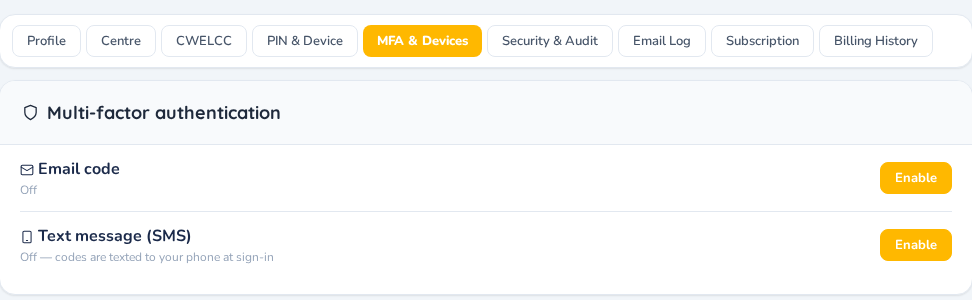
- Open Settings › MFA & Devices.
- Beside Email code, click Enable, then Enable MFA. Save the 8 recovery codes somewhere safe. They are your backup if you lose access to your email.
- For Text message (SMS), click Enable, enter your mobile number, click Send code, then enter the code and click Verify & enable.
The Trusted devices card lists every device signed in to your account with its location and last use. Revoke any one of them, or click Sign out everywhere.
New sign-in emails. You receive an email when your account is used from a device we have not seen recently. If the device and location are yours, no action is needed. If not, sign out everywhere, change your password, and contact support.
Parents can turn on the same protection from My Profile in their portal or app.